Batch Traceability 360 now includes some major new features that allow users to analyze the relationships between batches on the transaction or document level. The user can then convert the data from Batch Traceability 360 and download it as an Excel file.
The new features allow users to search for SAP Business One and CompuTec ProcessForce documents and view data about every batch related to that document. This can be very useful in a wide range of business situations. For instance, if you notice something is not quite right in the final goods related to a particular Manufacturing Order, but you aren’t sure where the problem originated, you can find that Manufacturing Order, bring up information about every batch that was consumed in it, and investigate further from there. Or perhaps one of your customers has notified you that not only was one of the products you delivered faulty, but it has also contaminated other items they received from you as part of the same Delivery. The faulty batch was delivered to several other customers too. You can use Batch Traceability 360 to first of all find out where the faulty batch went and also, by referencing the Delivery documents, find out in a few seconds what other products sent out in the same Deliveries were at risk of cross-contamination. These are just a couple of examples of a huge number of potential usage scenarios.
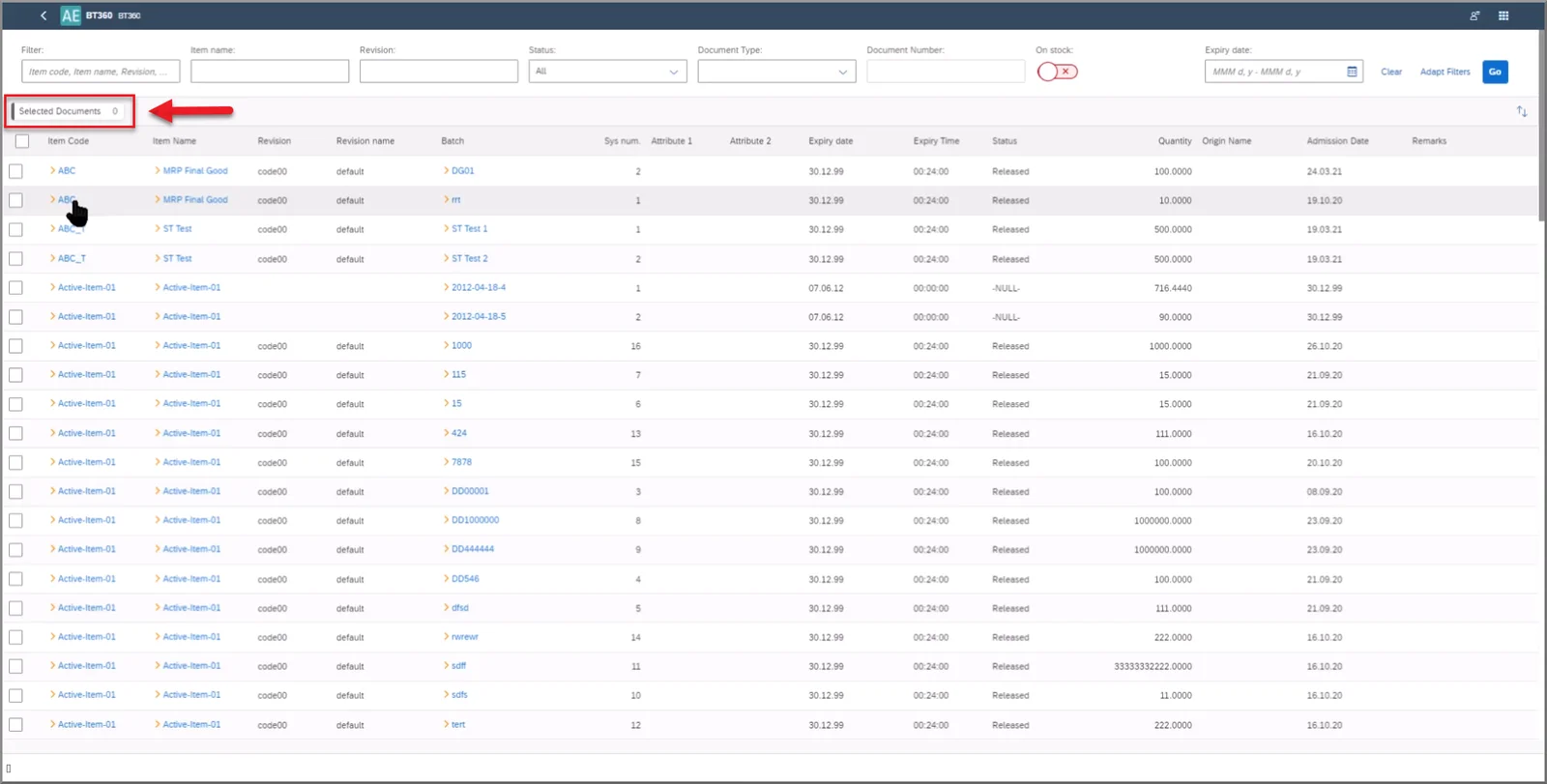
So how does it work? Now you can find batches connected to a particular document by clicking on the Selected Documents button, as indicated below. This will bring up a window where you can select the document type and then the document number. It is possible to include multiple documents in the search. After you click OK, a list of all batches connected to the selected document(s) will appear in the table.
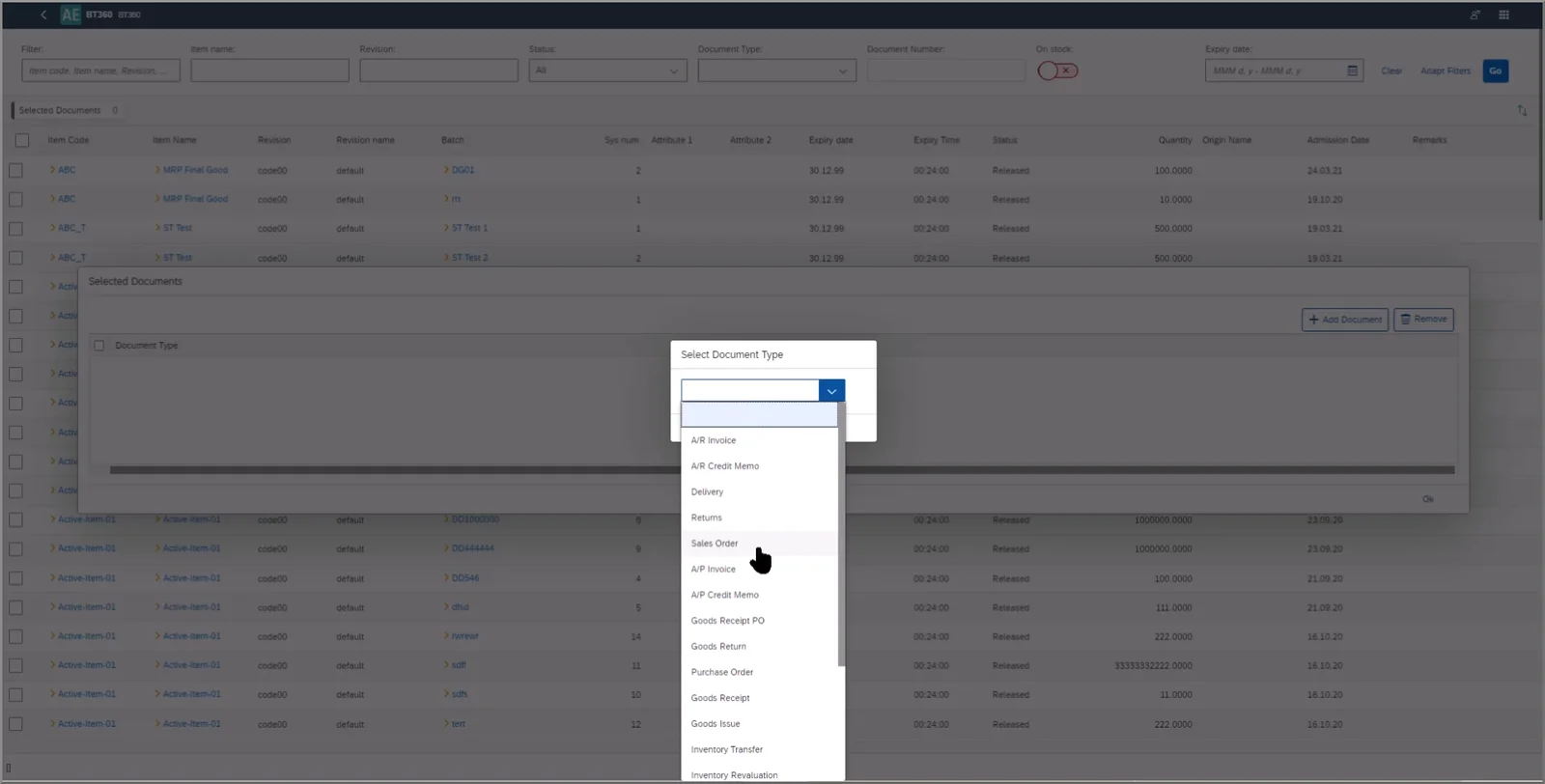
You can then include the entire list of documents or select from the list and proceed to generate a visualization of all the selected batches, which will display the relationships between them, as in the following example.
From the graph, you can:
- View related documents
- Open the related Batch Details document in SAP Business One
- Go to a single batch analysis (opened in a new browser tab)
- Choose to view only related nodes
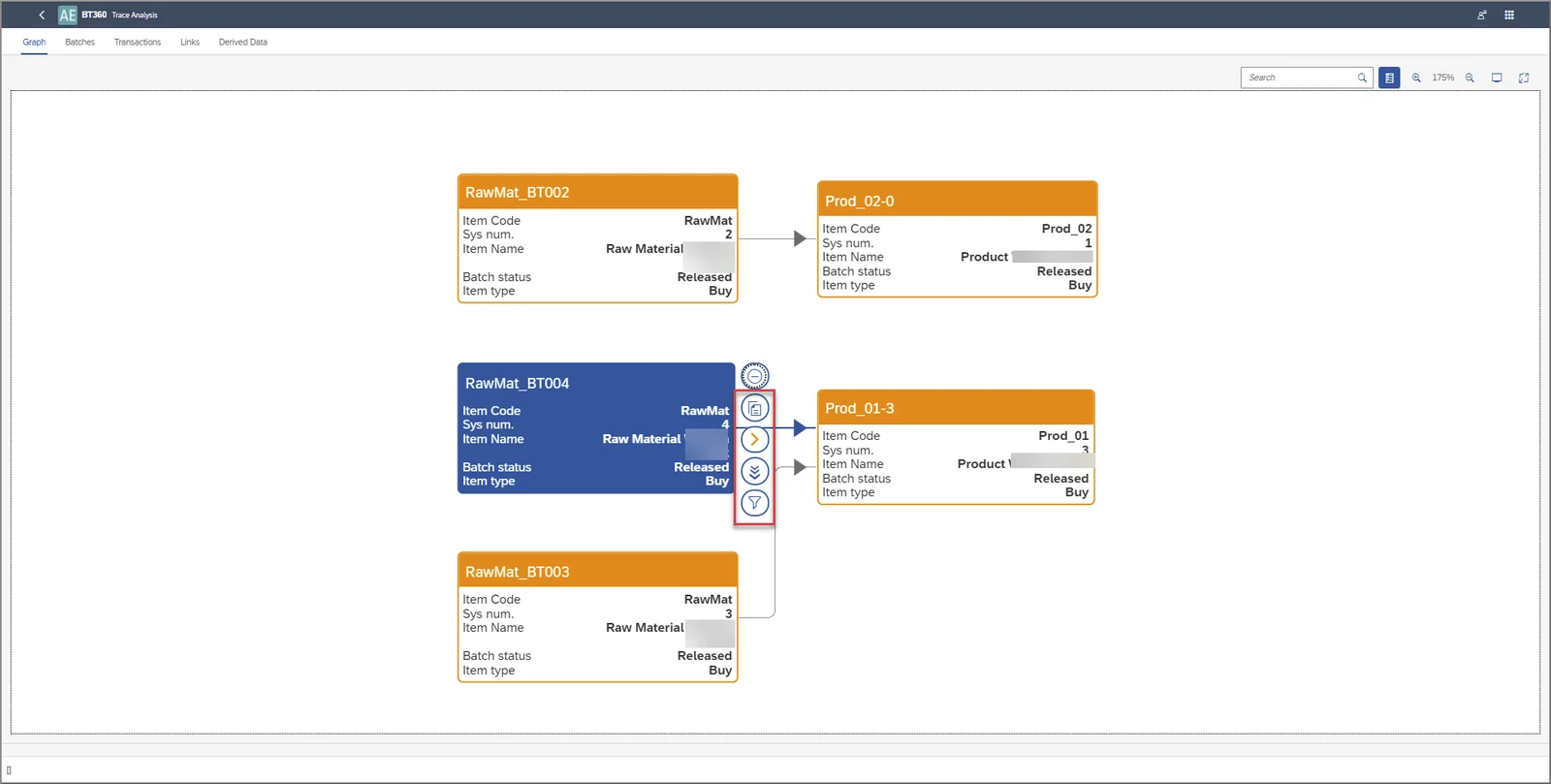
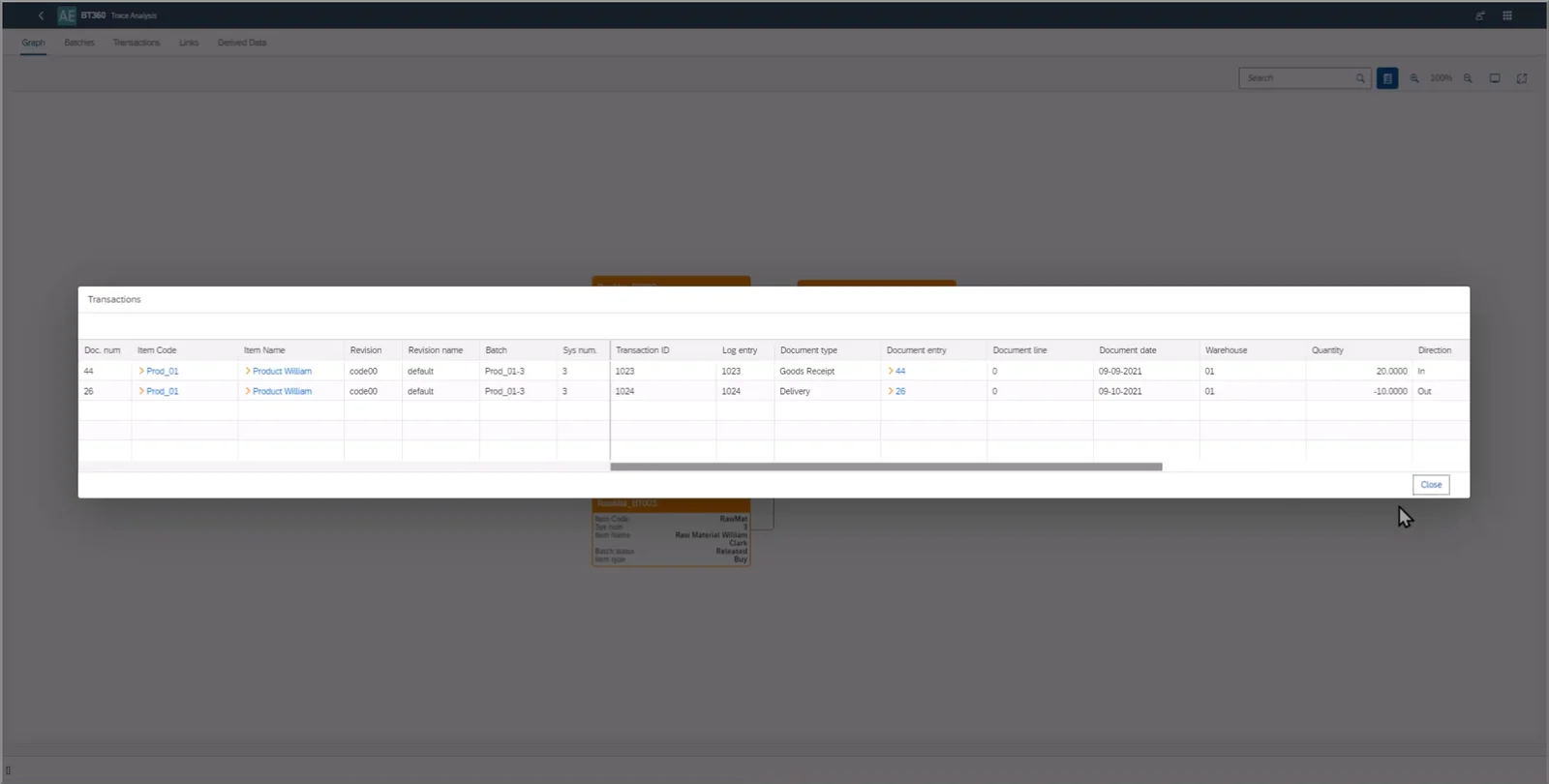
From here, you can opt to see a list of all the documents associated with any batch on the visualization graph. You can also link to the overview section to get more information about the batch. If you have launched Batch Traceability 360 from SAP Business One (as opposed to from the CompuTec AppEngine Launchpad), you can use the golden arrows in Batch Traceability 360 to link to SAP Business One and CompuTec ProcessForce objects. Each batch on the visualization chart has a direct link to the corresponding Batch Details, and if you bring up the list of documents associated with the batch, you can navigate directly to those documents using the golden arrows too.
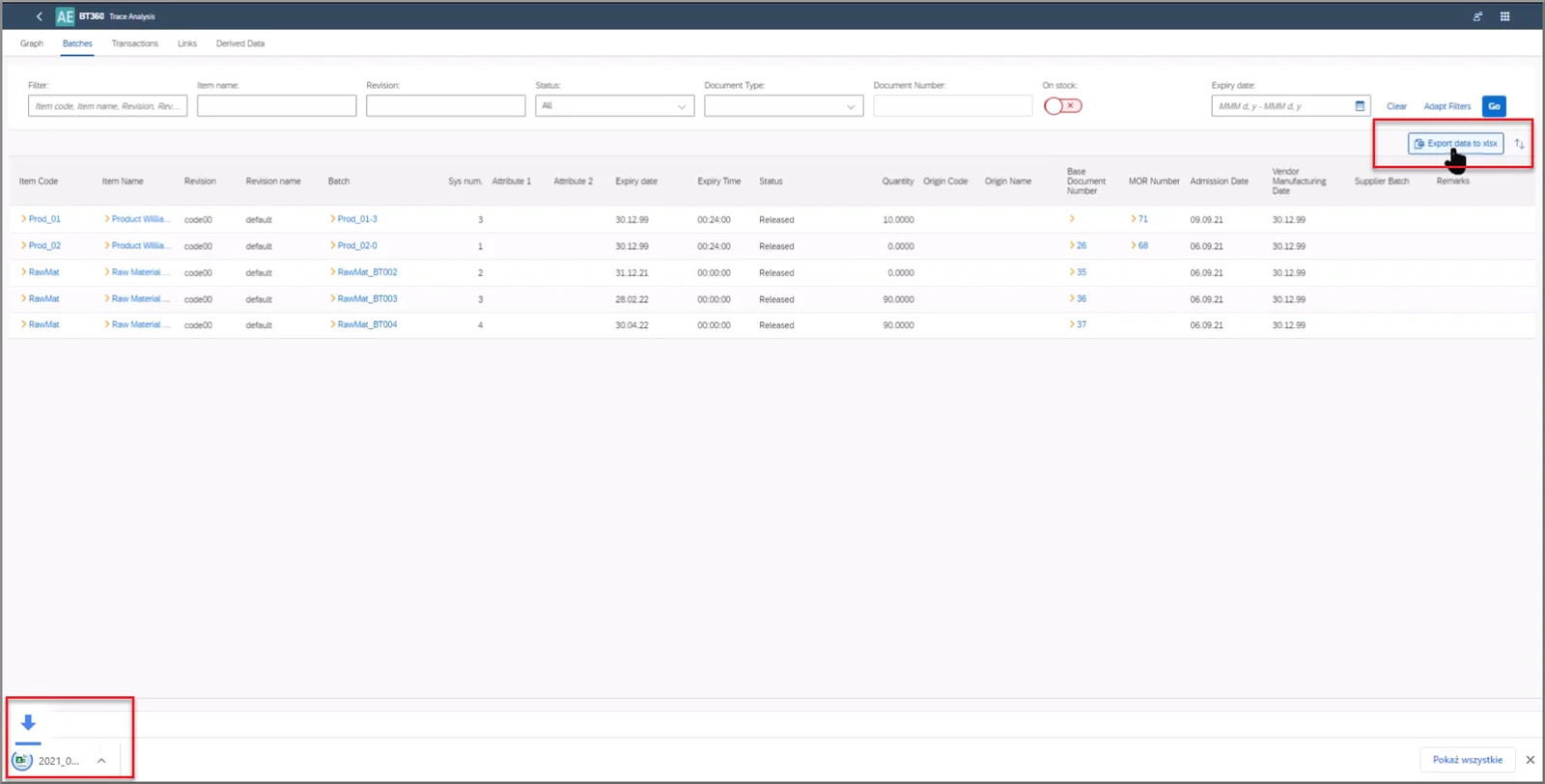
You can now also download the data from the Batches, Transactions, Links, and Derived Data tables as an Excel (.xlsx) file. The data will be exported to a single file, but each data type will be displayed on a separate sheet.
For an overview of this and the other functionalities in Batch Traceability 360, please take a look at our video below or read our previous blog post on Batch Traceability 360. More detailed information about these newest features is available in the CompuTec ProcessForce documentation, and there is a full demonstration of multi-batch analysis on YouTube.